Vim in Cloud, part 3
Work non-destructively
Imagine you are reviewing a file and type an instant message to a mate, but unfortunately the window focus was is still on the editor😱… Or perhaps you try an improvement, test it, and you realized it was a bad idea and need to revert to the original version?
Well, in the cloud -based editor you could try undo. Also you can also restore the file from the repository (git restore), but vim offers several options for different occasions.
- You can open a file in read-only mode:
$ view file
- or open a file normally and prevent accidental changes by
:set noma:set ma
This is my favorite, for every saved milestone – you can jump back to the shell by [Ctrl]+[Z] and test the code, return to coding (commandfg)
- at least, right after opening a file, you can enable backup:
:set backup
Checkout backup feature
Let’s have a file:
$ vim a-file.txtwith a content:
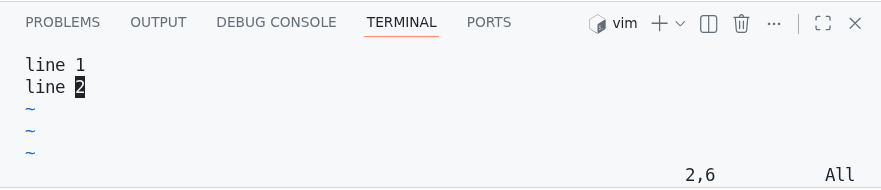
Save it and quit (:wq). Then revisit it, execute the (bash) command, still at vim with [ESC]
:! ls -tr a-*You should see:
a-file.txt

Press ENTER or type command to continue
So press [ENTER] and at vim again execute : ([ESC])
:set backupwrite the file (:w), check the directory content again (:! ls -tr a-*)
a-file.txt~ a-file.txt

Press ENTER or type command to continue
Now you have a backup file (notice extension with tilde).
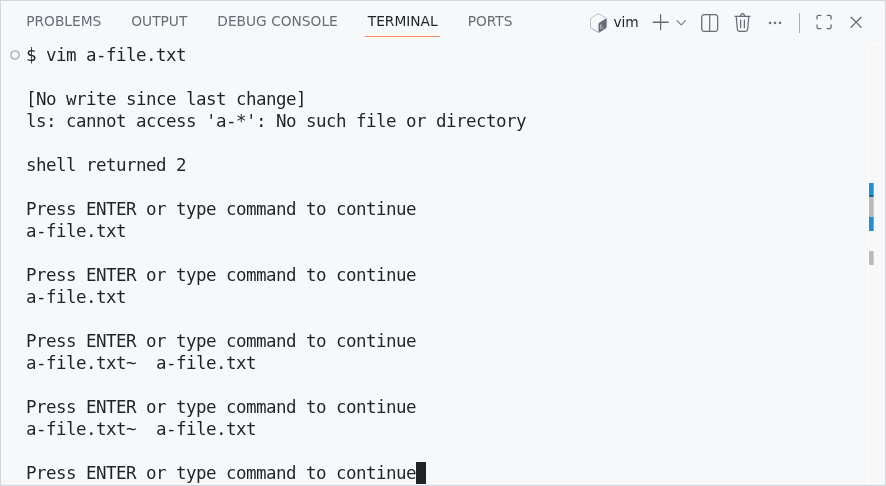
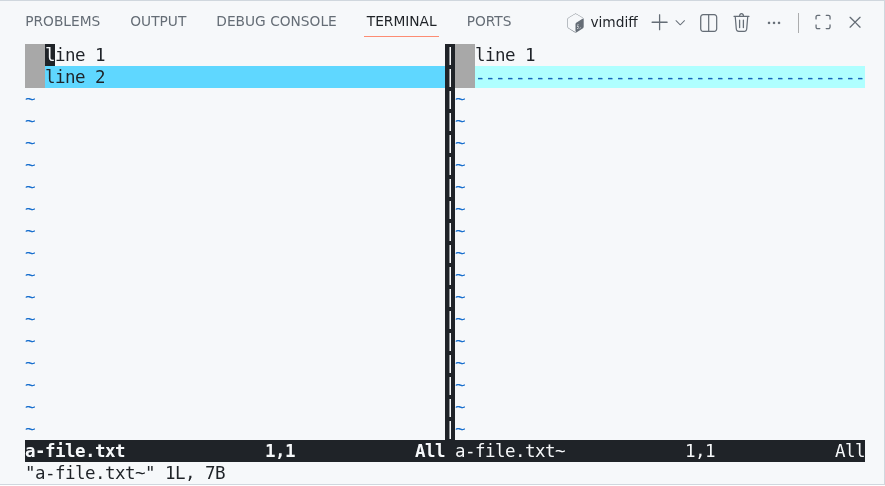
ls command executions from vim a-file.txt appeared after vim commands :set backup, edition and :w(rite)Now delete “line 2”, write the file and quit (:wq). See the difference to backup… maybe like this 😜
Backup untracked by Git
Expect the backup file to be untracked by Git.
$ git status
On branch …
Your branch is up to date with 'origin/…'.

Untracked files:
  (use "git add <file>..." to include in what will be committed)
        a-file.txt~

nothing added to commit but untracked files present (use "git add" to track)
to be continued…